Q: I'm reworking my SiD subsites. How do I move an existing class to a new subsite?
A: First, create the new subsite. Then create and add rooms to the subsite. Now you're ready to add classes to a room in the new subsite.
- From the Classes tab, select the desired class name.
- On the Summary tab, click the class summary Edit button in the white box on the left side of the screen.
- From the Room menu, select the desired subsite/room combo.
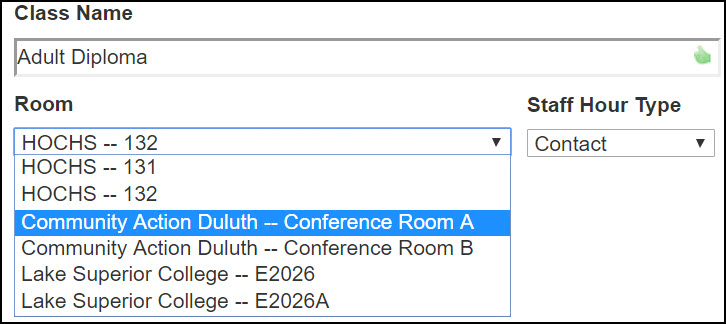
- Click the Save button.
The class row on the Classes tab will display the new room name and subsite.
The subsite/room change is retroactive to when the class started. There is no longer any reference to the old subsite/room that was replaced.
Note: if you are no longer using a subsite, you can give it a hide date. This will keep it from appearing in the subsite dropdown menu. See the "Hide an Existing Subsite" section in this help article: Add, Edit, or Hide SUBSITES
0 Comments