This article tells how to add or remove benchmarks from a student record.
There are two different ways to assign benchmarks to a student.
- Assign benchmarks to a group of students who are in the same class all at once from the Classes>Benchmarks screen. This is a good option when working with a whole class, or
- Add benchmarks to individual students using the Students>Benchmarks screen. Use this when you're updating one or two students.
Assign benchmarks to a group of students in the same class
Staff with a SiD Teacher level login must be enrolled in the class as a teacher in order to add benchmarks for class members.
- Select the class from the Classes tab. Then click the Benchmarks tab.
- In the section with student names, click the desired benchmark link at the top of the column.*
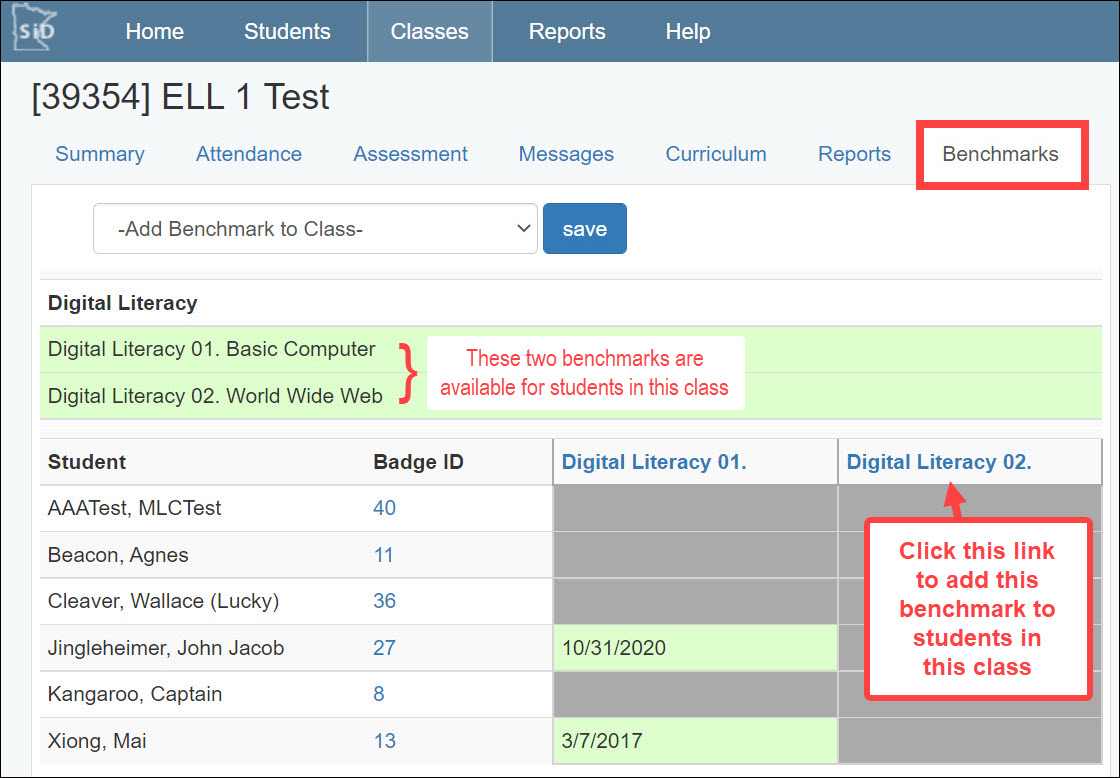
*The green shaded section shows benchmarks that are available for students in this class. To change the benchmarks associate with this class, see Link or Remove a Benchmark from a Class. - The benchmark completion screen shows currently enrolled students who have not yet earned the benchmark you selected.
• Check the box in front of the student's name.
• In the box at the end of the row, type the date the student met the benchmark. Repeat for other students who earned the benchmark.
• Click Save Benchmarks.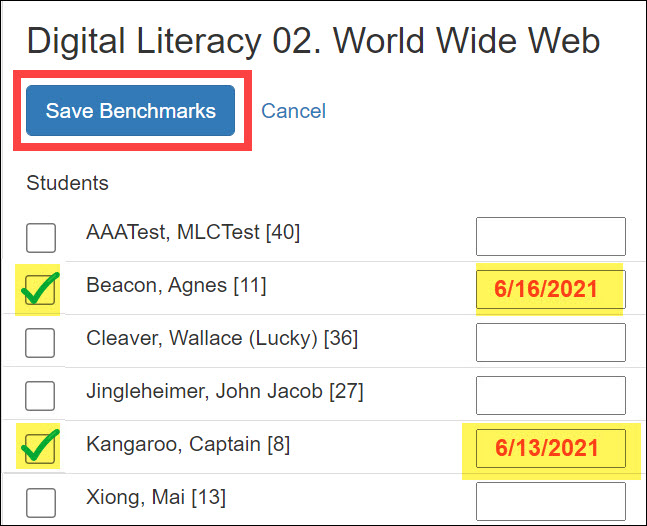
The benchmark completion date now appears on the student record.
Add benchmarks to individual students
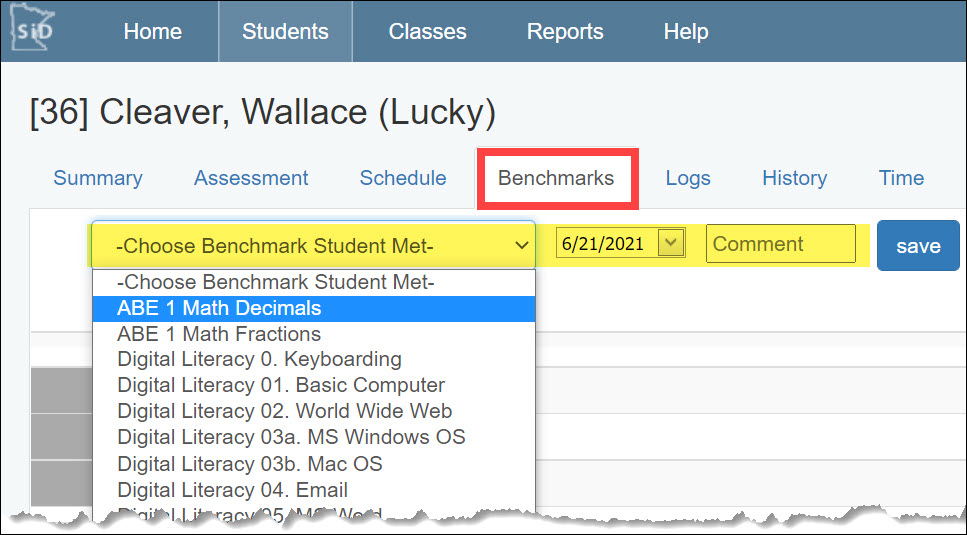
- Select the student from the Students tab; click the Benchmarks tab.
- Highlight a benchmark from the "Choose Benchmark Student Met" menu.
- In the date field, enter the date the student met the benchmark.
- Add a comment if desired.
- Click Save.
Edit or remove a benchmark from the Students>Benchmark screen
Benchmarks can only be edited or removed from the Students>Benchmarks screen. From this screen, you can edit the date the student met the benchmark or remove the benchmark from the student record.
- Select the student from the Students tab. Then click the Benchmarks tab.
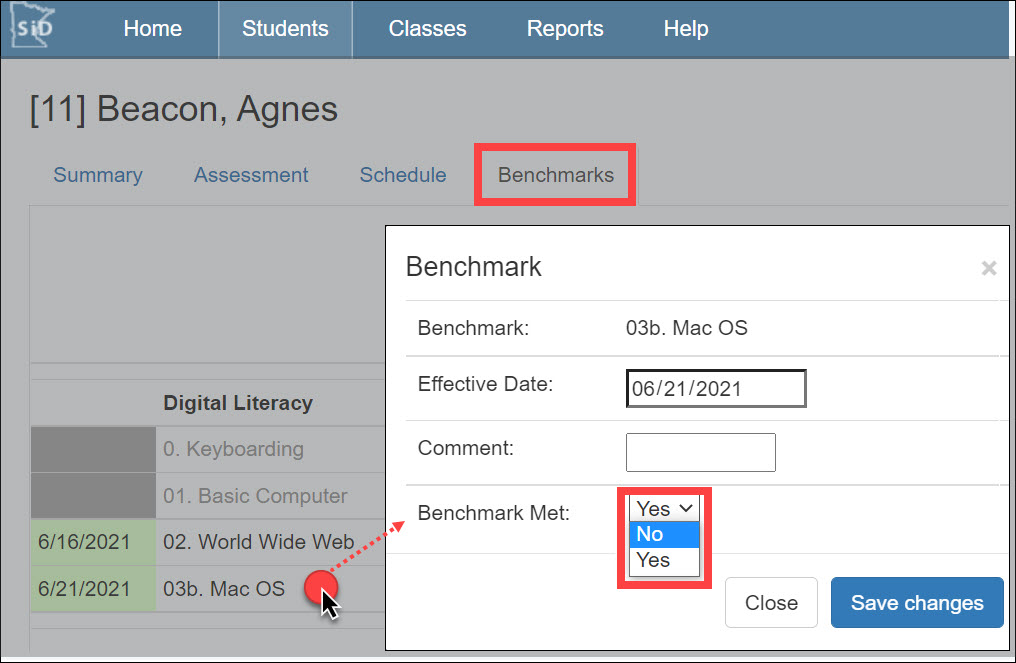
- Click the row with the benchmark to be edited or removed. The Edit screen will appear.
• To edit the date the student met the benchmark: highlight and type over the existing Effective Date.
• To remove the benchmark, change Benchmark Met to "no." - Click Save Changes.
0 Comments