This article tells how to link or remove a benchmark from a class.
Staff with a Teacher level SiD login can assign benchmarks to their own classes. When a benchmark is linked to a class, it can be added to the record of any student enrolled in the class. See Add, Edit, or Remove Benchmark on a Student Record to learn how to assign a benchmark to a student.
Staff with a Teacher level SiD login can link benchmarks to their own classes when they appear in the Add Benchmark to Class menu. Instructors can also remove benchmarks for their own classes.
Link a benchmark to a class
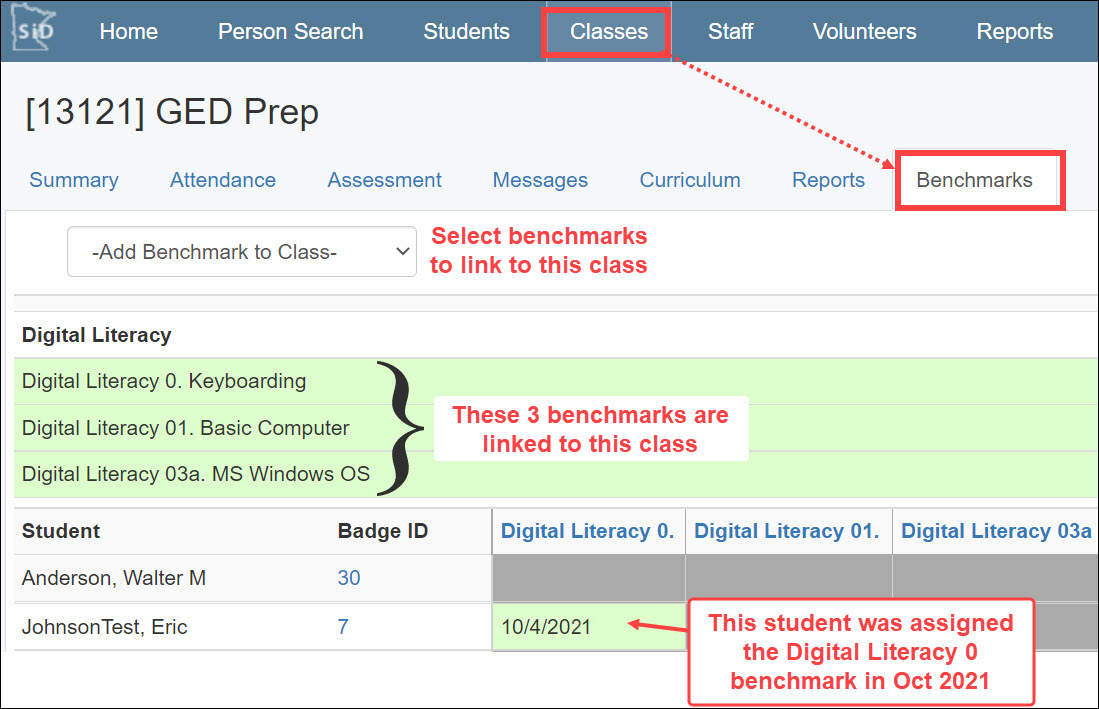
- From the Classes tab, select the desired class. Then click the Benchmarks tab.
- Click the Add Benchmark to Class menu. It shows all of the statewide and local benchmarks that can be linked to the class. Select the desired benchmark.
- Click Save.
Repeat for each benchmark you want to link to the class. The newly linked benchmark(s) will appear in green shading on the screen.
Remove a benchmark from a class
If the class is no longer tracking one or more benchmarks, they can be easily removed from the class. Students who previously met the benchmark will still show the date it was earned on their record.
- From the Classes tab, select the desired class. Then click the Benchmarks tab.
- From the green shaded section, click the row with the benchmark you want to remove.
- In the Edit box that appears, click Remove this Benchmark, and follow the prompts.
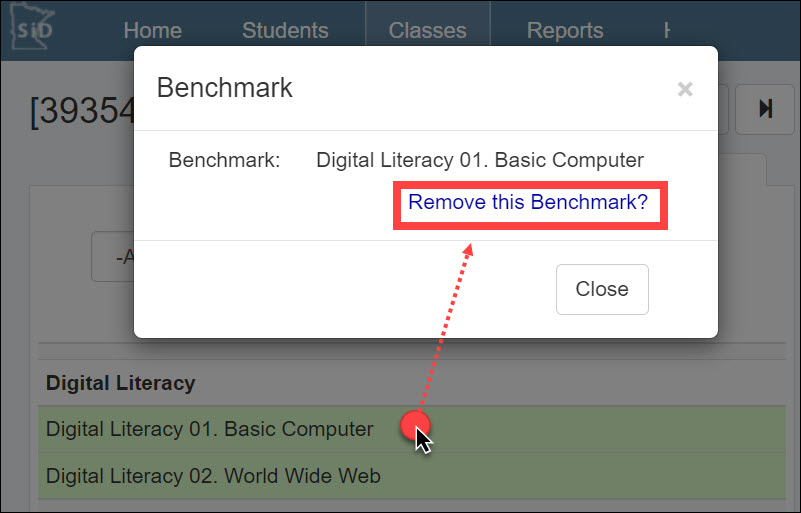
The benchmark will no longer appear in green shading on the screen. If you change your mind, you can re-link the benchmark to the class.
0 Comments