Benchmarks help identify the skills that a student has mastered. This article discusses statewide vs. site-specific benchmarks; why you might want to use benchmarks; pre-planning; reviewing available benchmarks; and how to see benchmarks assigned to students.
Statewide vs site-specific benchmarks
SiD has a list of generic, statewide benchmarks for Northstar Digital Literacy. They are available for all programs and can be linked to classes or added to individual student records.
Each site also has the ability to create custom benchmarks for local use. Your site-specific benchmarks will not be visible to other ABE programs.
There are several parts to setting up benchmarks that are tailored to your site.
- A staff person with a SiD Admin level login creates the new benchmark on the Admin tab;
- The new site-specific benchmarks can be linked to a class by a teacher enrolled in the class; and/or
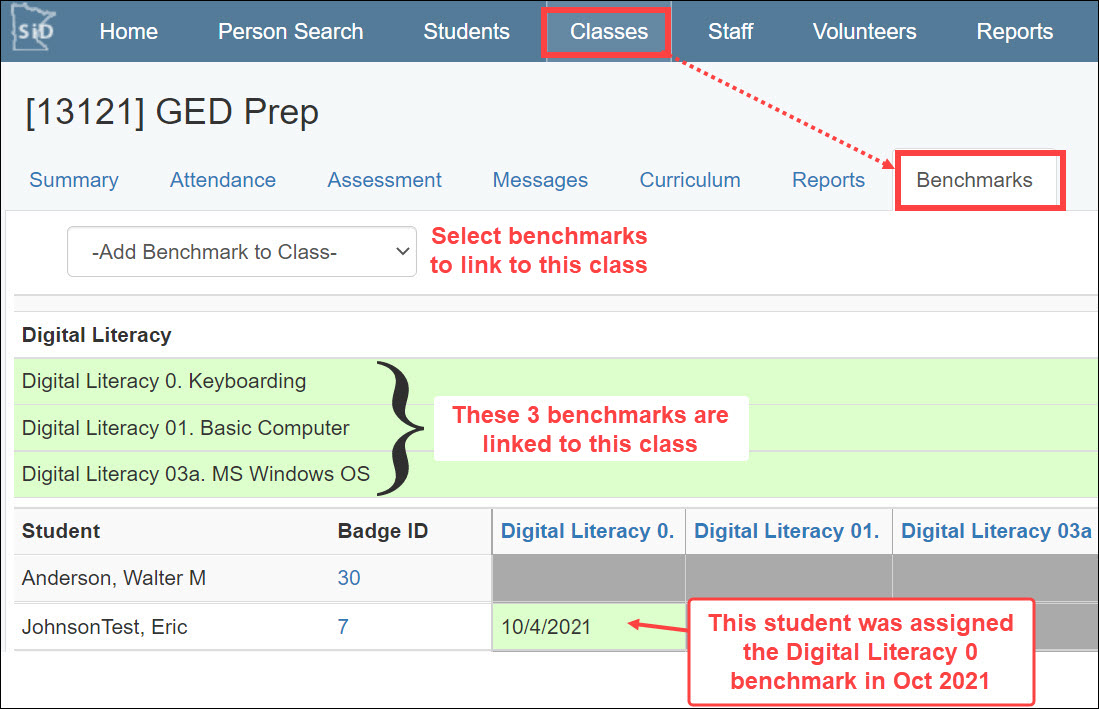
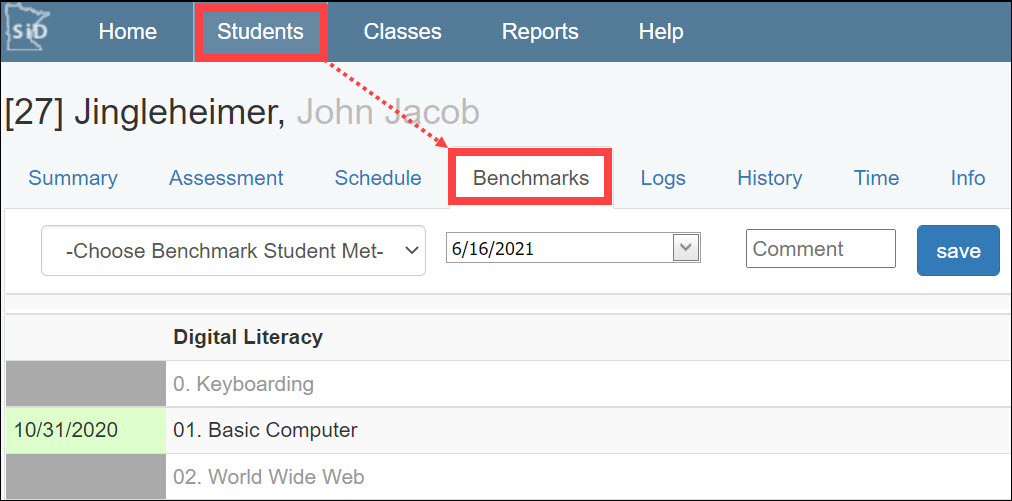
- Benchmarks can be added to student records from the Classes>Benchmarks screen or Students>Benchmarks screen.
Why use benchmarks
Benchmarks can provide more incremental detail about student progress. Here are some common reasons why you might use benchmarks.
- Track student accomplishments beyond NRS tests and items on a student's history screen.
- Have a set of skill expectations for students in individual classes. Examples: "use capitalization correctly," "fill out a simple form," "completed fractions".
- Use benchmarks that are program-wide, such as "wrote resume," "completed interview skills".
- Run lists of students with these accomplishments/benchmarks.
- View benchmarks students achieved in other classes.
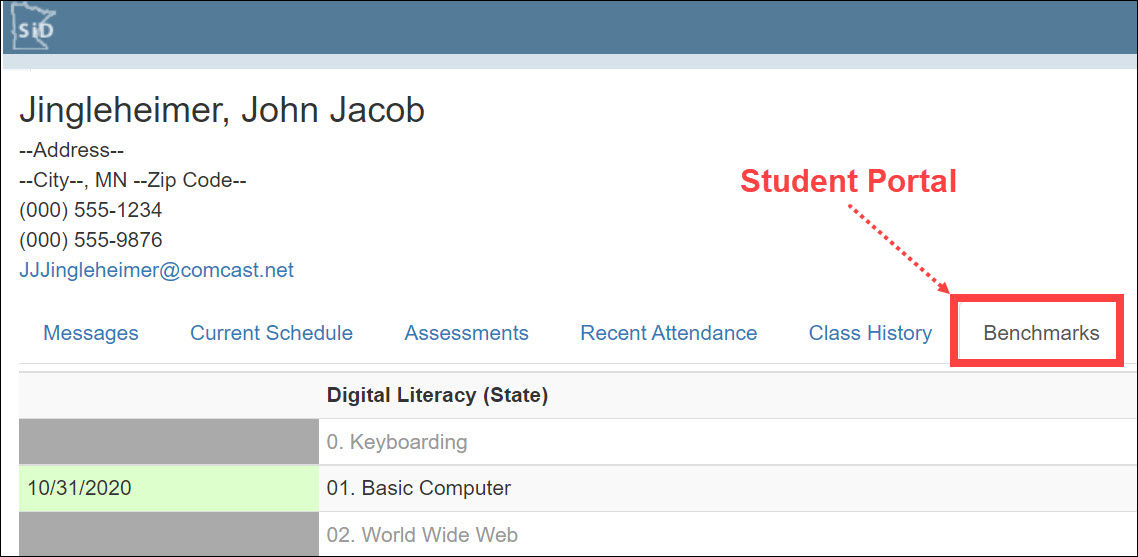
- Students can see the benchmarks they have met through their student portal.
Pre-planning
Take some time to develop benchmarks offline before creating them in SiD. Which students will be followed? What specific skills do you want to track? How do you want to record them in SiD - by class or for an individual student? How often will benchmarks be updated, and by whom?
Here are a couple of examples of how benchmarks can be used.
A. Benchmarks your program might use for all students
- Resume writing
- Interview skills
B. Benchmarks associated with different levels of classes
- ELL 1 or 2:
-Uses capitalization correctly
-Uses simple past, present, and future verb tenses. - ELL 4
-Writes in complete sentences
-Can fill out a simple form
Review available benchmarks
There are a couple of ways to familiarize yourself with statewide and site-specific benchmarks that are already available. Be sure to review them before creating new benchmarks on the Admin tab.
1. Admin>Benchmarks (for staff with SiD Admin level logins):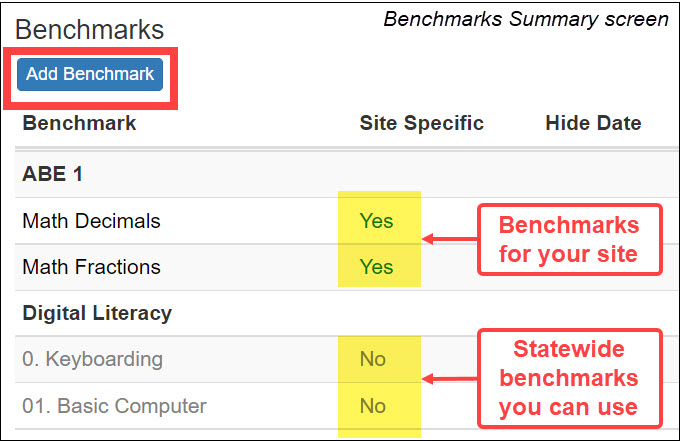
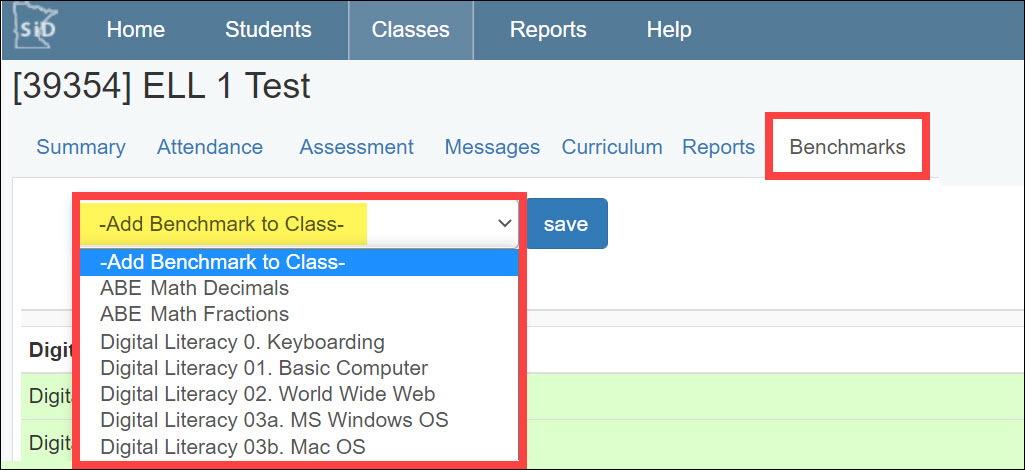
2. Benchmark menus on Classes>Benchmark or Students>Benchmark screens:
How to see benchmarks assigned to students
The following screens show benchmarks that have been assigned to students.
- Classes>Benchmarks
- Students>Benchmarks
- Student Portal
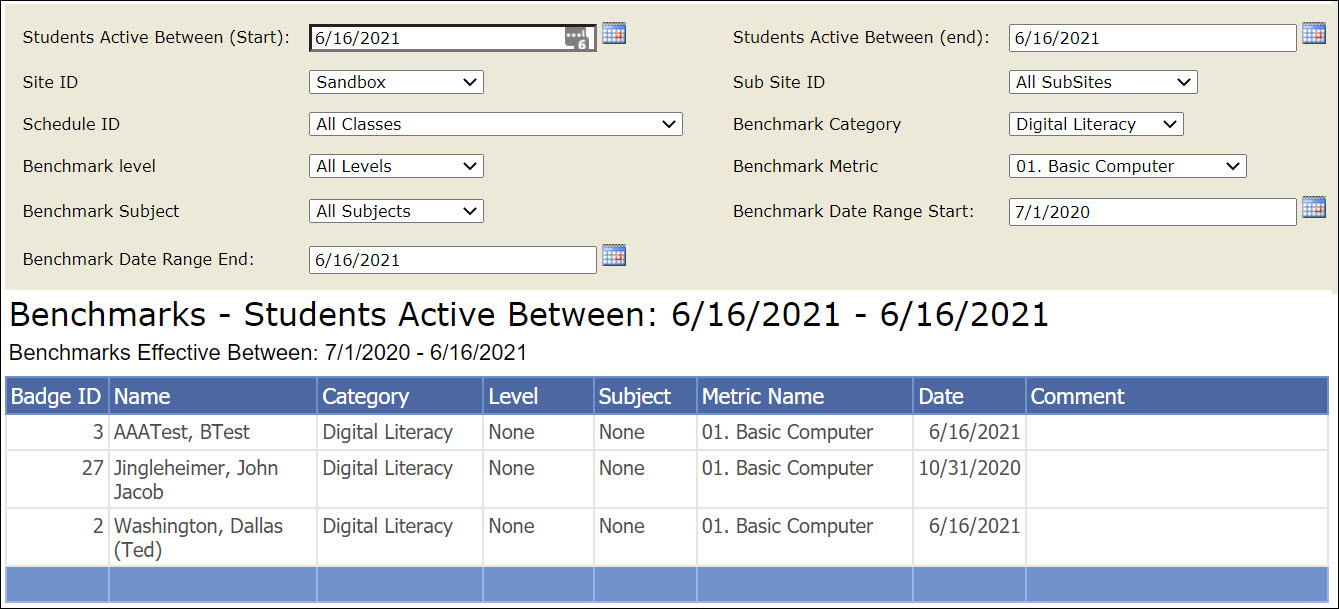
- Benchmarks report - See Student Benchmark Report for details
0 Comments