The Student Benchmark Report will create a list of students who were active (enrolled in a class) within a specified date range and will display all of their benchmarks.
Benchmarks can be filtered by Effective Date Range, Benchmark Category, Level, and Metric.
There are many filters for the Student Benchmark Report. The "Students Active Between (Start)/(End)" will select all students who are enrolled in a class between those dates. (See orange box in Fig. 1 below.) Dates default to today, showing students who are active today. Adjust Active dates if you want students who were enrolled in a different timeframe.
The next set of dates (blue box in Fig. 1) allows you to set the date range of the benchmarks that will be displayed in the report. Use these fields to find all benchmarks with Effective Dates that fall between the dates you select. The default shows 1/1/2008 to today's date.
The default is also set to find all "Benchmark Categories", "Benchmark Levels" and "Benchmark Metrics". Adjust those accordingly.
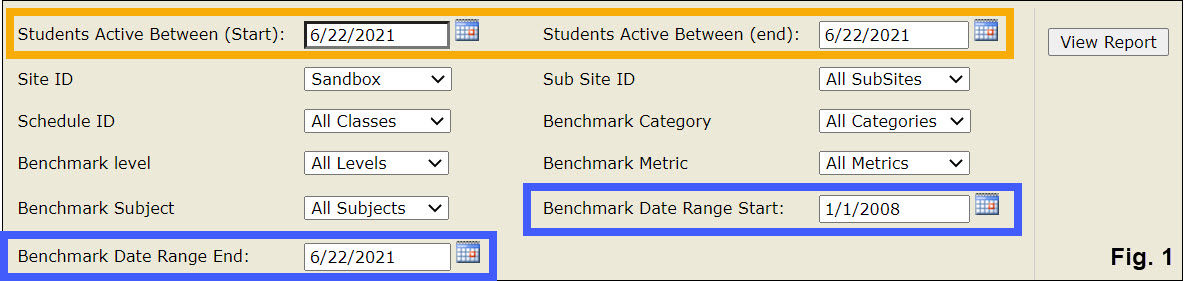
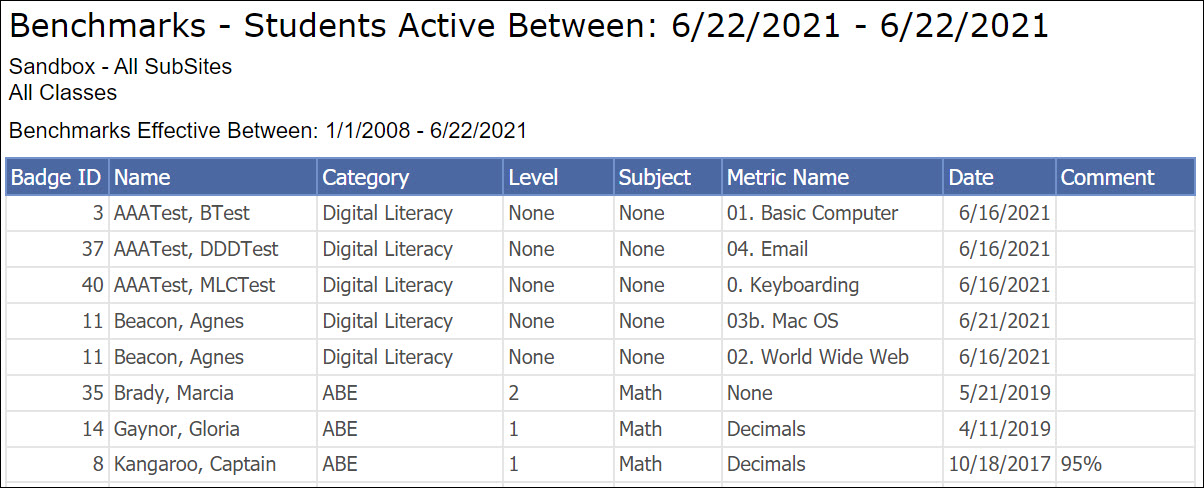
The settings above will show all students enrolled on 6/22/2021 - those who have an active class on their schedule on that date - and will display all of their benchmarks dated between 1/1/2008 - 6/22/2021.
The title of the report includes the Active date range you selected. The report subtitle shows the Benchmark Effective Date range you selected.
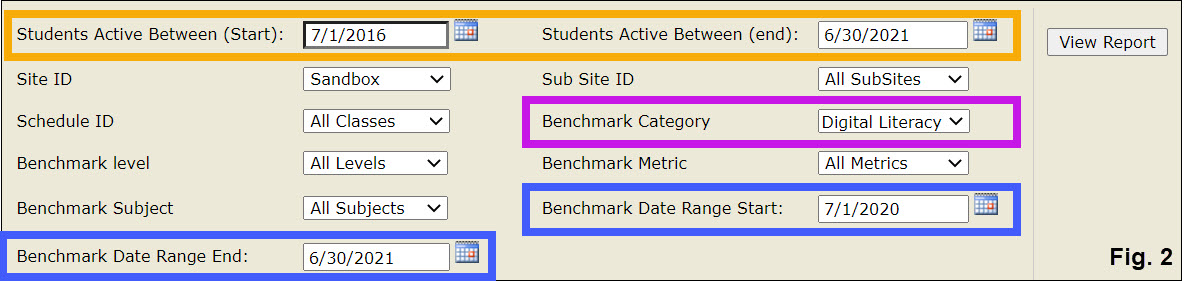
Example 2: Find students enrolled in the last 5 years who had Digital Literacy benchmarks during the 20-21 program year. This will capture students who were enrolled in the last 5 years, then finished some benchmarks this year.
- Set the Students Active Between dates as (7/1/2016 - today).
- Set the Benchmark Date Range between 7/1/2020 and today.
- Set the Benchmark Category to "Digital Literacy" (See purple box, Fig. 2)
- Click the View Report button.
Your results show students who were active at any time between 7/1/16 and today, and had Digital Literacy benchmarks with an Effective Date between 7/1/20 and today.
0 Comments