This article discusses the features of the Remote Instruction and Remote Access links.
The Remote Instruction link allows programs to attach a URL link to a class that meets online using Zoom, Google Meet, or other technology tools.
Students enrolled in the class can view and select the meeting URL using the Remote Access link from the Schedule tab in the Student Portal.
Remote Instruction Link
Every class record has a field for entering the URL for the online class meeting. It's located in the gray shaded box on the left side of the Classes>Summary screen.
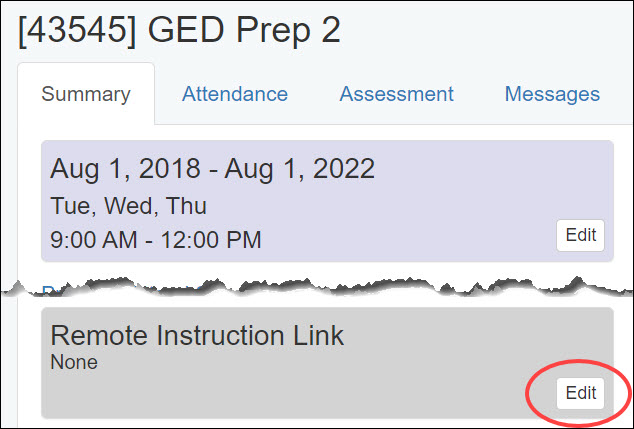
- From the Classes tab, select the row with the desired class name. Click the Edit button in the gray-shaded Remote Instruction Link section, found at the bottom left of the screen.
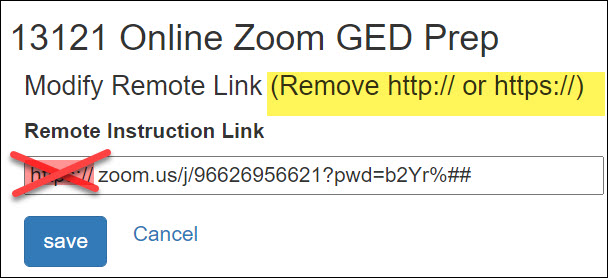
- On the Edit screen, type or paste the URL into the box. Be sure to remove the http:// or https:// from the beginning of the URL. Click Save.
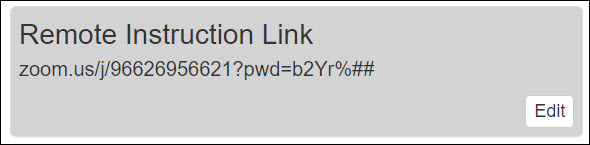
- The Remote Instruction Link box will now show the URL for the online class.
Student Portal Remote Access Link
Students can use the Student Portal to select the link to join the online class.
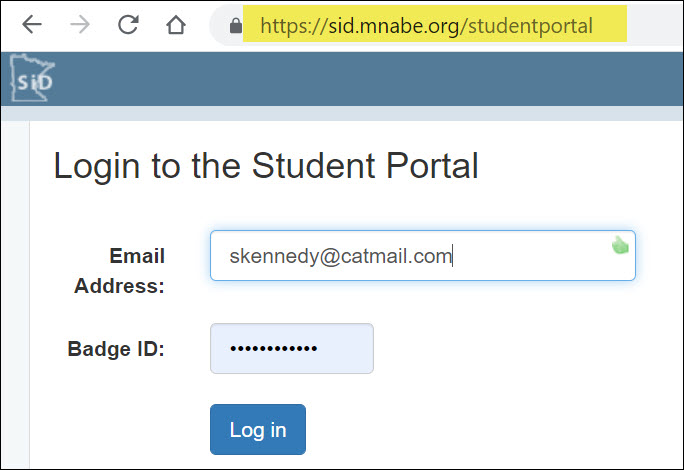
- Have the student log in to the Student Portal (sid.mnabe.org/studentportal) using their email address and SiD badge ID.
- Once logged in, click the Current Schedule tab. The Remote Access login link will appear under the appropriate class name.
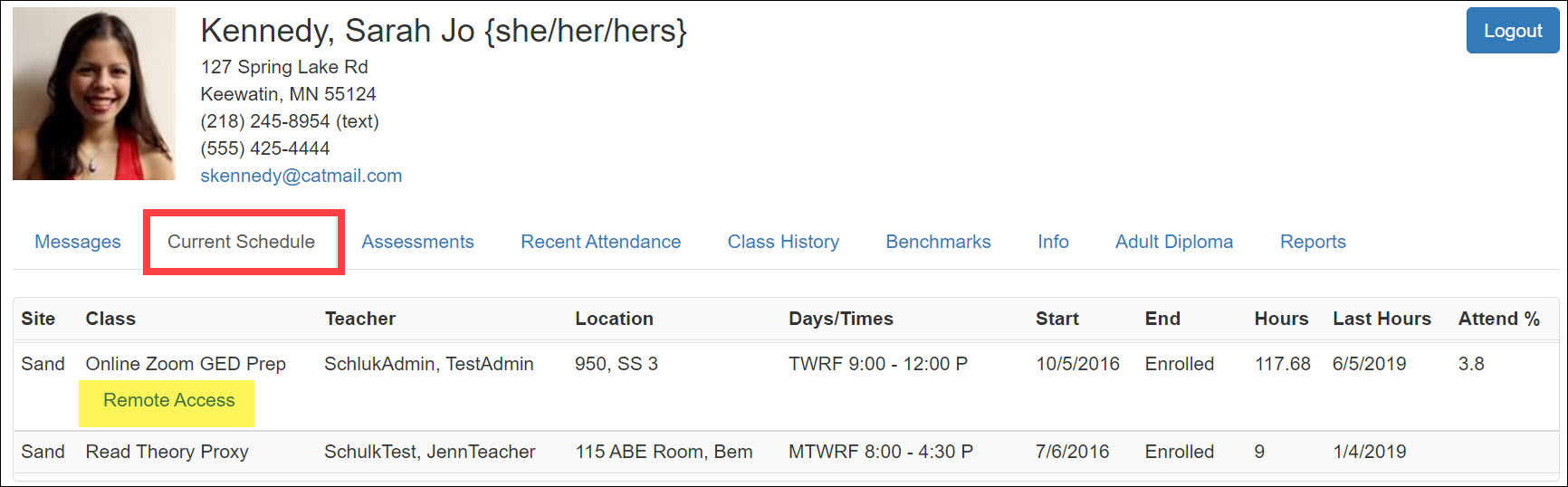
- Click the Remote Access link to activate the meeting URL.
0 Comments