This article describes how to create, edit, or hide benchmarks customized for your ABE program.
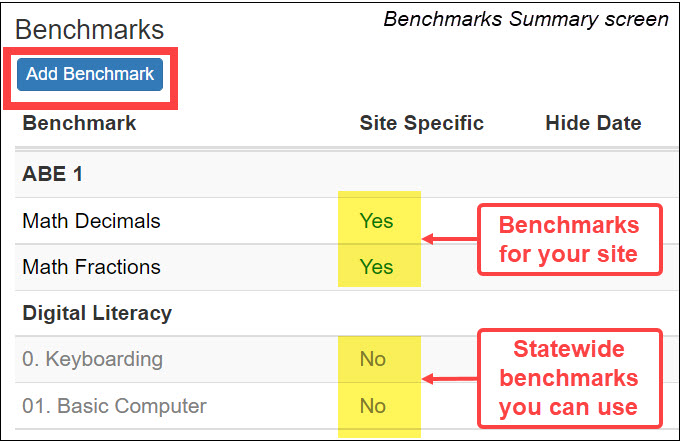
SiD has a list of generic, statewide benchmarks for Northstar Digital Literacy. They are available for all programs and can be linked to classes or added to individual student records. Do not recreate Northstar Digital Literacy benchmarks for your site!
Each site also has the ability to create custom benchmarks for local use. Your site-specific benchmarks will not be visible to other ABE programs.
Best practice: be sure to think through and make an overall plan before adding site-specific benchmarks to SiD.
Users must have SiD Admin level login privileges to create, edit, or hide benchmarks.
For more about benchmarks, see this section in the Students help category: Benchmarks
Create benchmarks for your site
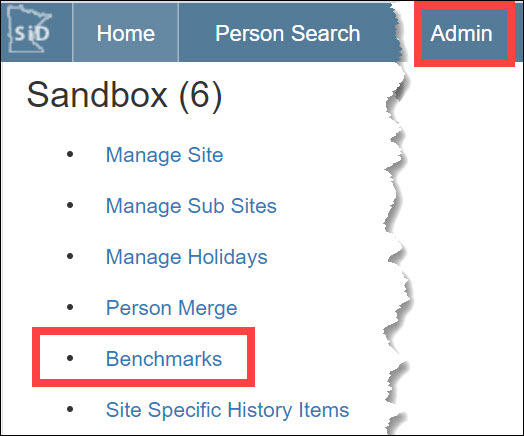
- On the Admin tab, click the Benchmarks link.
- If your benchmark does not appear on the Benchmarks Summary screen, click the Add Benchmark button.
- On the Add a New Benchmark screen, select a Category, Level, Subject, and Metric for each benchmark you want to create. It's OK to use "none" if it applies to your benchmark.
---
If your desired item does not appear in the menu, create your own:
-
-
- Select the appropriate "Manage ..." link
- Type your text
- Click the "add ..." button to finalize your new item
- Click the "back" link to return to the Add a New Benchmark screen. Your new item has been added to the menu of the section you selected.
-
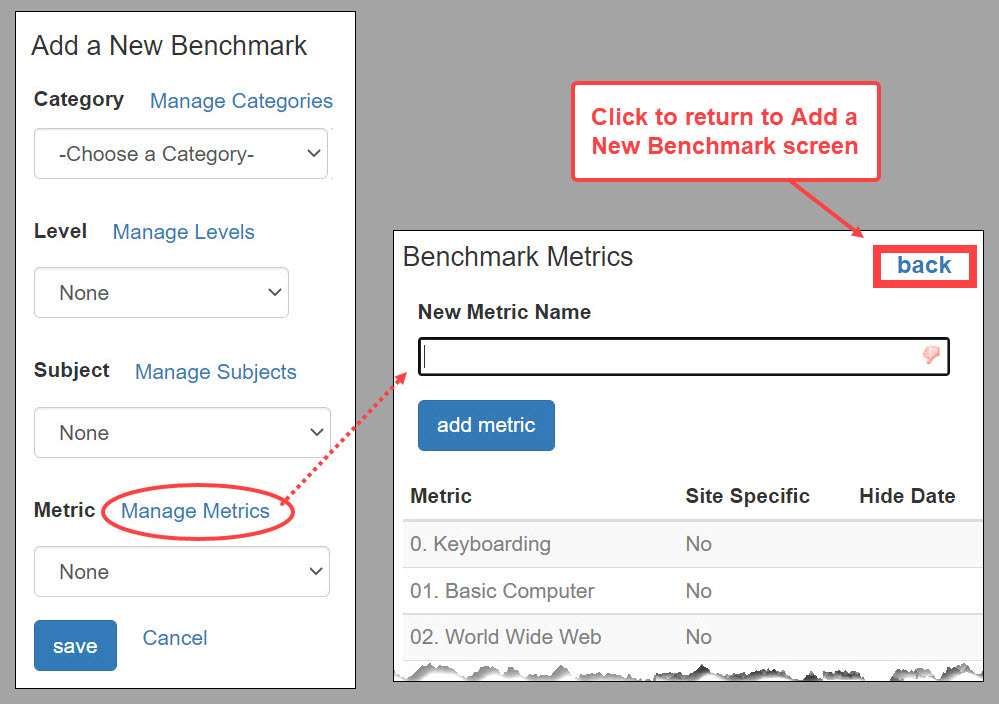
- 4. Click the Save button on the Add a New Benchmark screen to finalize the creation of your site's new benchmark. Your newly created benchmark will appear on the Benchmarks Summary screen.
Repeat steps 1-4 until you have created all your new benchmarks. The new site-specific benchmarks can be linked to a class. They can be added to student records from the Classes>Benchmarks screen or Students>Benchmarks screen.
Edit or hide benchmarks created for your site
You can edit or hide (not delete) benchmarks that have been created by and for your site. Statewide benchmarks cannot be edited or hidden.
- On the Admin tab, click on the Benchmarks link.
- From the Benchmarks Summary screen, click the benchmark row you want to change or hide.
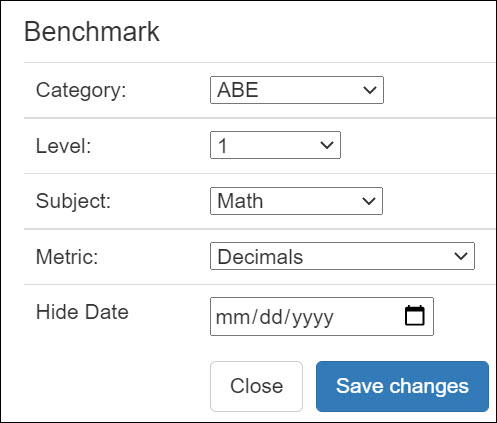
- On the Edit screen, you can change or hide the benchmark.
• To change the benchmark, choose a different item from one or more menus.
• To hide the benchmark, type a date in the Hide Date box.
• To remove a hide date, highlight and backspace over the mm, dd, and yyyy characters. - Click Save Changes.
0 Comments