This article describes how to deactivate and reactivate records for people who volunteer for your ABE program.
---
It's important to keep volunteer records updated for accurate reporting.
- When volunteers stop working with your program, deactivate their records. (This won't delete or hide the person's name from the Volunteer tab, which must be kept for historical records.)
- When volunteers return to work with your program, reactivate them.
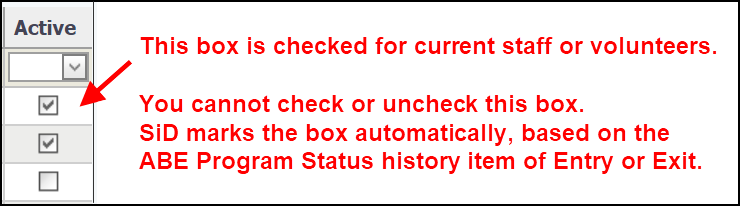
On the Volunteer tab, look for the Active column. A check mark means the person is currently part of your program. A blank means they are not.
Note: you cannot check or uncheck the Active box. SiD marks it automatically by looking at the Volunteer>History tab. The most recent ABE Program Status history item of Entry or Exit determines whether the Active box is marked.
Deactivate volunteers
- Exit the volunteer from all classes.
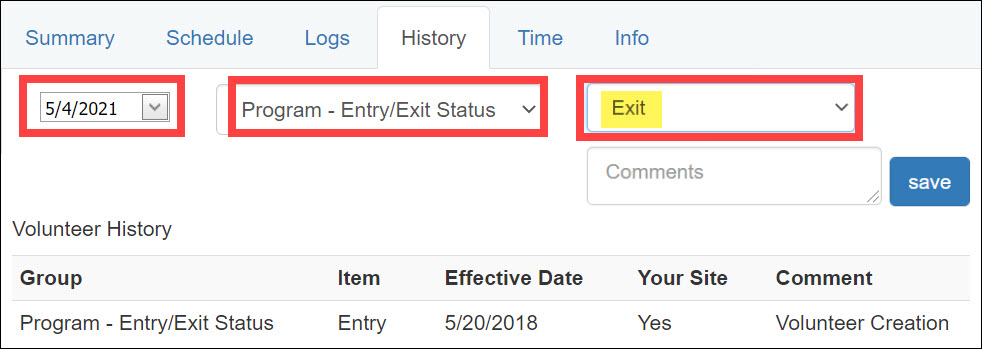
- Go to the Volunteer>History tab.
- Create a new history item.
- For the Effective Date, use the date the person left.
- In the History Groups menu, choose Program - Entry/Exit Status.
- From the History Item menu, choose Exit. Add any comments you like.
- Click the Save button.
On the Volunteer tab, the box in the Active column should now be unchecked. (It may take a few minutes to refresh.)
Reactivate returning volunteers
- On the Volunteer tab, search for the person's name.
- Go to the Volunteer>History tab.
- Create a new history item.
- For the Effective Date, use the date the person returned.
- In the History Groups menu, choose ABE Program Status.
- From the History Item menu, choose Re-ENTRY - or ENTRY. Add any comments you like.
- Click the Save button.
On the Volunteer tab, the Active box should now be checked. (It may take a few minutes to refresh.)
0 Comments