Run the Class Hours Comparison for Enrolled Students report to see enrolled students and their hours in other classes.
The report is found on the Classes>Reports tab. It does not appear on the Reports tab.
Report Filters
This report begins with students enrolled in your class in the date range you select. The Students column will show only those with hours in other classes that match your filter(s).
Start Date/End Date - Type your enrollment date range.
Comparison Class - Select one class from the menu to compare with your class. Or choose All Classes to display other classes attended by your students during the report date range.
Comparison Classes - Show DL Only?* - Choose whether to show only classes with a distance learning (DL) student time type - Yes (DL Only) - or all classes - No (show all).
Examples
In the examples below, the Student column shows learners enrolled in your class between March 1, 2021, and March 31, 2021. Take a look at how changing a filter changes the results.
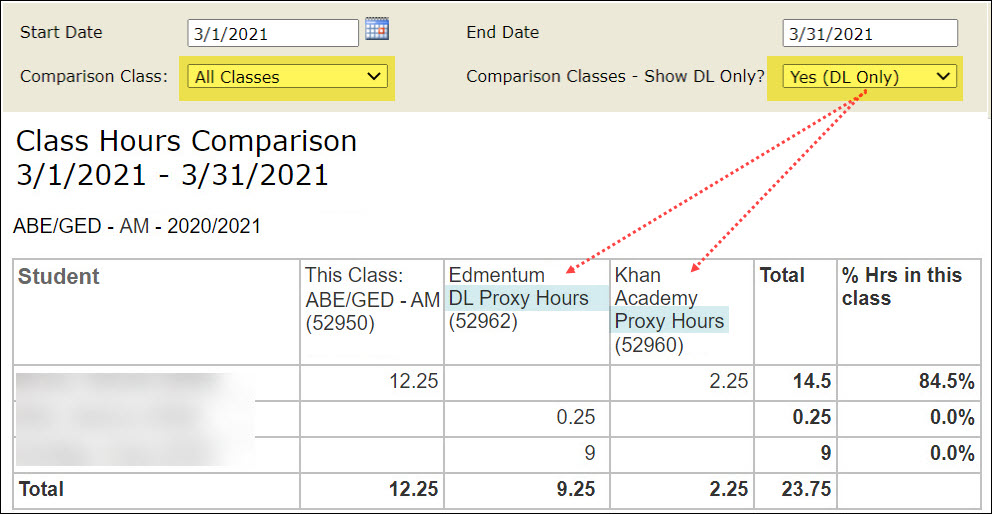
Example 1: shows students enrolled in class 52950 ABE/GED - AM who have March 2021 hours in any DL classes.
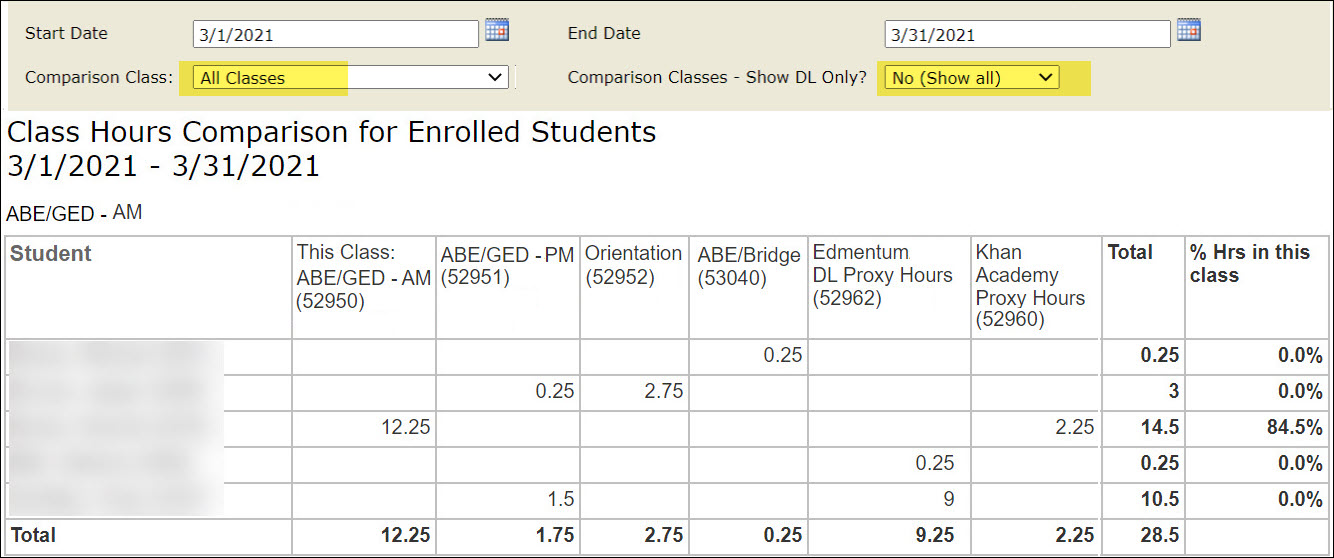
Example 2: students enrolled in class 52950 ABE/GED - AM who have March 2021 hours in any class.
Example 3: students enrolled in class 52950 ABE/GED - AM who earned March 2021 hours in 52960 Khan Academy.
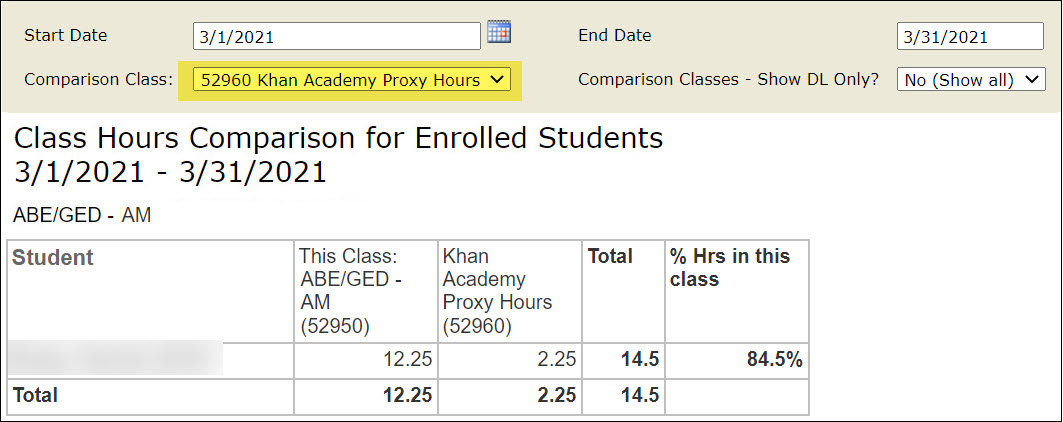
*When you choose a single class from the Comparison Class menu, the Comparison Classes - Show DL Only? field is ignored.
0 Comments