The Classes>Curriculum page is a place to store web addresses for instructional material used in each class. This article covers the basics of making and managing the optional curriculum links.
Staff with a SiD Teacher level login can add, edit, or delete class curriculum links for classes in which they are enrolled. Staff with an Admin level login can manage curriculum links for all classes.
Add a curricular link
- On the Classes tab, select the desired class.
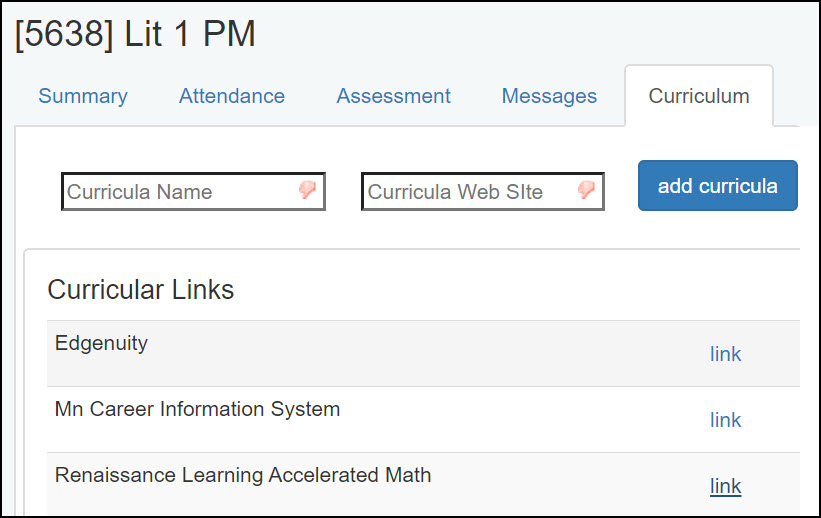
- From the Classes>Summary screen, click the Curriculum tab. If the Curricula Name and Web Site form appears, you can add websites for this class.
- In the Curricula Name field, type a brief description of the website.
- In the Curricula Web Site field, type the web address/URL.
Tip: to prevent typos, go to the desired web address, copy the URL, and paste it in the Curricula Web Site field. - Click the blue Add Curricula button. A new row will appear below the form.
Activate a curricular link
When one or more curricular links appear, click on the blue word "link" to go to the web site.
Edit or Delete an existing curricular link
- Go to the Classes>Curriculum tab.
- Locate the desired curriculum row. Click somewhere in the row, but NOT on the word "link."
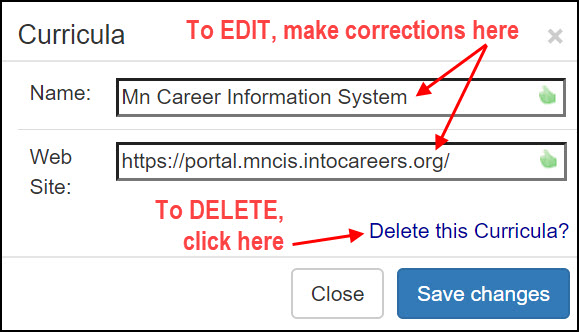
- The Curricula screen will appear.
- To EDIT, type corrections to the curricula name or web address. Click the Save Changes button.
- To DELETE, click the Delete this Curricula link. Click OK on the "are you sure?" prompts.
0 Comments