Text Checkboxes indicate that the primary and/or secondary phone number can receive text messages. This article describes how to manage the optional text checkbox for students, staff, and volunteers.
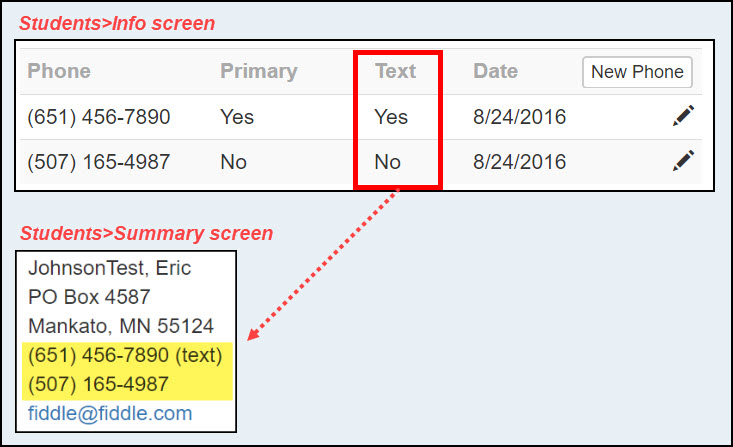
A phone number's text status appears on the Summary and Info screens.
Topics in this article:
- Apply a phone Text Checkbox for new or returning students
- Apply or remove the phone Text Checkbox for existing students
The directions below are written for students, but the same concept applies to staff and volunteers.
Add a phone Text Checkbox for new or returning students
Scenario 1: Create new student from scratch
Type the student's phone number and tick the Text Checkbox if the number can receive texts.
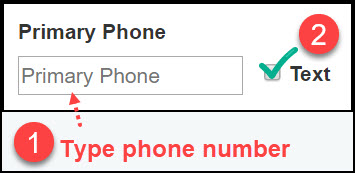
Scenario 2: Add student to your site or re-enter former students
Apply the Text Checkbox when adding a student to your site from Person Search or using the Student Re-Entry form.
- For a phone number already on the student record:
(1.) Retype the existing phone number.
(2.) Click the Text checkbox if the number can receive texts.
- To add a Text checkbox to a new student phone number:
(1.) Click the New Phone checkbox.
(2.) Type the new phone number to be added to the student record.
(3.) Click the Text checkbox.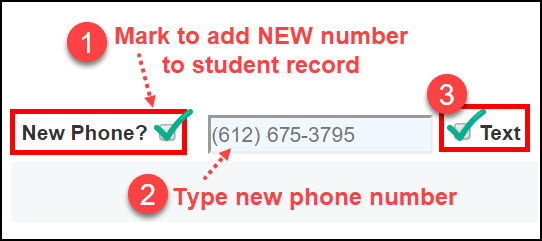
Apply or remove the phone Text Checkbox for existing students
Turn the Text Checkbox on or off for students who are already in your site.
- On the Students>Info screen, select the desired phone number row or click the pencil icon.
- On the Edit screen, select yes or no; save changes.
- Confirm the change on the Info or Summary screens.
0 Comments