If a student, staff, or volunteer name changes, you can change it after a record has been created.
Your choices are to create a new name or edit the existing name.
- Create a new name if the person is going by another name. This will add a new row to the Personal Data History, which is important to keep in the historical record of the student.
- Edit a name if you're correcting a spelling typo, adding a nickname or making some other minor change. The date in the name row will be updated to the current date.

Create a new person name
Video: Add, Edit Student Contact Details (4:32) (based on Teacher level login)
- On the Students tab, select the desired student.
- On the Student>Info subtab, click the New Name button.
- Select the date the new name went into effect.
- Enter the new student name. Type over all parts of the name you want to keep (even if they will remain the same).
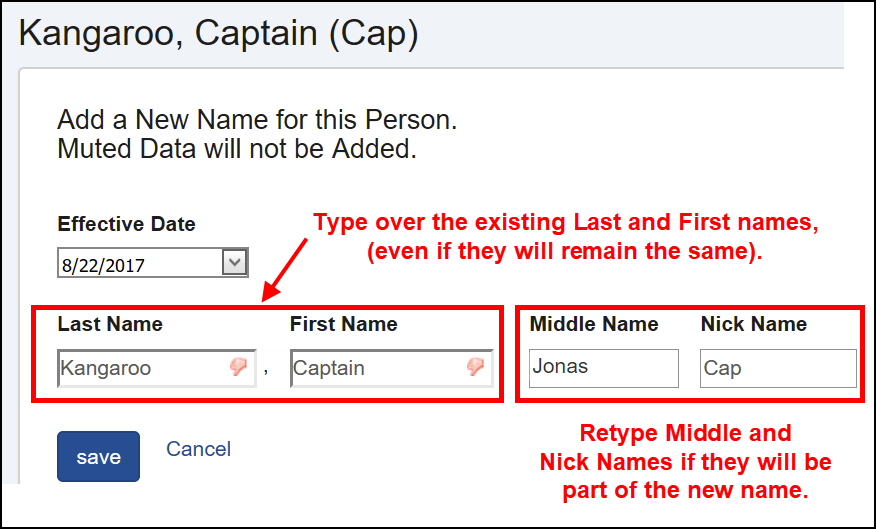
- Click the Save button.
Edit a person name
- On the Students tab, select the desired student.
- On the Student>Info subtab, click the pencil in the row with the student name.
- In the edit screen that appears, update any details.
- Click the Save button.
0 Comments