Updated 2/2/26
This article gives an overview of the 3 possible SiD login roles. It also covers these topics:
- Add new (first time) login privileges
- Change or reset existing login privileges
- Remove login privileges
Video: SiD Admin: Manage Staff Logins (4:58)
Users must have Admin level privileges to create a new student record.
Note: If your staff person is shared with another site, the login privileges are handled a little differently. Contact us at sidsupport@literacymn.org for guidance.
Staff can have one of 3 login roles:
- View Only - User can browse any screens within the site to which s/he is assigned. S/he cannot add, edit, or delete students, classes, staff, etc.
- Teacher - User can enter attendance for students in classes where s/he is the assigned teacher. Click here to see more about teacher login privileges.
- Admin - User can perform any database function (add/edit/delete students, classes, staff, etc.) within the site to which s/he is assigned.
Add new (first time) login privileges
- Click on the Staff tab. Search for the staff name and click the desired row in the results.
- Go to the Account subtab. In the Email Address field, type the email address of the staff who will have login privileges. This will be the login username.
- From the Role menu, choose the level of database access.
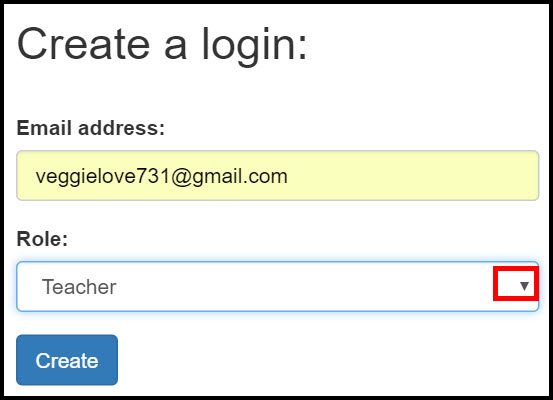
- Click the Create button.
-
Important! Click the Send Email for Confirmation button to notify the staff person by email - at the address you typed here - that a user account has been set up in the database.
To cancel without sending a confirmation email, click the Remove Login Rights link.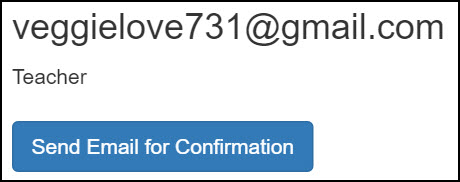
The staff person must click on the "here" button in the confirmation email within 48 hours of when it was sent. When the link is activated, the staff person will be prompted to set up a password. The password they choose is not visible anywhere.
Change or reset existing login privileges
To change a staff person’s login level - such as from Teacher to Admin or Admin to Teacher - you need to remove their current login and then set up the account again with the new role.
- Staff tab: Search for the staff name; click the desired row in the results.
- Go to the Account tab. Highlight and copy the staff email address if you will be reusing it to set up the account.
- Click the Remove Login Rights link.
- In the Email address field, paste the email address or retype from scratch. From the Role menu, choose the level of privilege to assign to the staff person. Then click the Create button.
- Click the Send Email for Confirmation button.
The staff person must click on the "here" button in the confirmation email within 48 hours of when it was sent. When the link is activated in the email, the staff person will be prompted to set up a password. It can be the same password as s/he used previously.
Remove login privileges
Important!
Setting a staff person’s Program Entry/Exit Status to Exit does NOT remove their ability to log in to the database. To fully revoke access rights, you must remove their login rights.
Please do not remove login access for shared staff until you’ve checked with us at sidsupport@literacymn.org. Removing login rights for shared staff will block them from all SiD sites—including ones where they are still actively working. A quick check with us helps keep everything (and everyone) running smoothly.
Remove login privileges for unshared staff
- Staff tab: Search for the staff name; click the desired row in the results.
- Go to the Account subtab.
- Click the Remove Login Rights link to clear the staff account email.
0 Comments