A student's most recent email address appears on the Students>Summary screen and various reports. If student's email changes, you can adjust it after a record has been created. Your choices are to edit the existing email address, create a new one, or deactivate all email addresses.
- Create a NEW email address if the person has a new email. This will add a new row to the Personal Data History, which is important to keep in the historical record of the student.
- EDIT an existing email address if you're correcting a typo.
- DEACTIVATE all email addresses. Use this option when the none of the student's email addresses are accurate.

Create a new email address
- On the Students tab, select the desired student.
- On the Students>Info screen, click the New Address button.
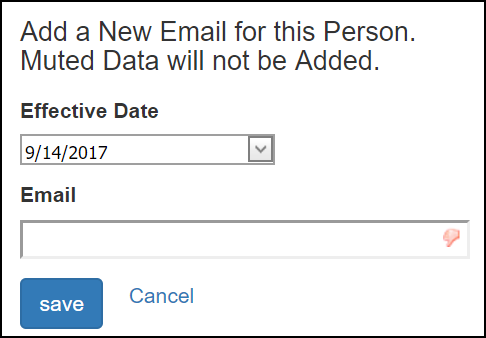
- A new screen will appear. Select the date the new address goes into effect. Type the new email address in the Email field.
- Click the Save button.
Edit an existing email address
- On the Students tab, select the desired student.
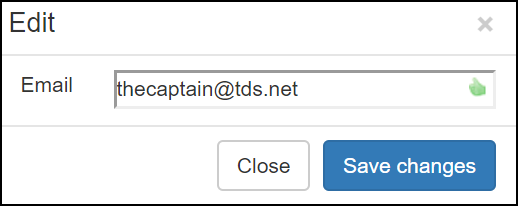
- On the Student>Info screen, click the pencil in the row with the address.
- On the edit screen that appears, update the parts of the address you want to change.
- Click the Save Changes button.
Deactivate all existing email addresses
- When the most recent email address is no longer accurate and there is no replacement, deactivate it. Check the box next to the words "E-mails Are Not Active." The email address will not appear on the Students>Summary screen or other contact lists and reports.

- To show an email address, UNCHECK the deactivate checkbox. The most recent email address will reappear on the summary screen and in reports.
- When student records are merged, email addresses will be active again. This will allow a more recent email address, if any, to appear.
0 Comments